
Cognitive training
How to Teach an Elderly Parent to Use an iPad or Tablet
Sanospark · · 9 min read
Why the usual lesson fails
Teaching an elderly parent to use a tablet usually fails for one reason: the lesson is built for the teacher. An hour of explanation, jargon about settings and accounts, and a demonstration done for the person rather than by them leaves the parent watching. The useful answer to how to teach elderly to use ipad is smaller than that.
The failure is rarely about the device. It is about three habits. The first is the long lesson: an hour at the kitchen table, when the person remembers the first five minutes and little after twenty. The second is abstract teaching, explaining what an app store is to someone who only wants to see a grandchild face. The third, and the most damaging, is doing it for them: the parent hands the tablet over, the child sets everything up, and the parent learns that the device is something done to them.
There is a fourth, and it belongs to the device. A tablet that greets a new user with advertisements, notifications and thirty icons is working against the lesson: the person cannot tell which squares matter, so every sitting starts with the same confusion.
Start with one task, and let them hold the device
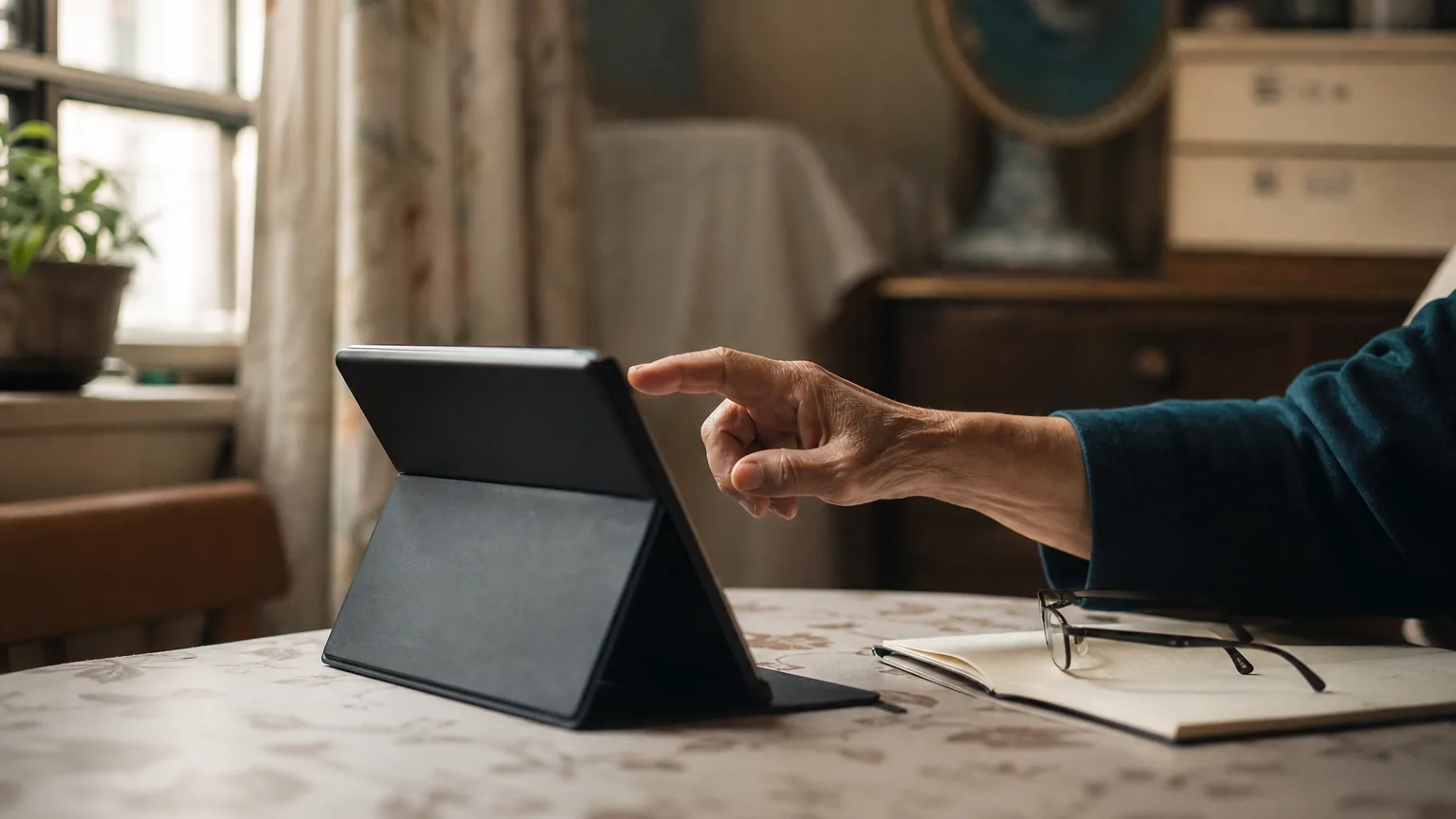
Choose a single task and stay on it for the whole sitting. For most families the first task is a video call, because it carries its own reward: the reason to open the tablet is a person, not a lesson. Sit beside the parent rather than opposite them, put the tablet in their hands, and let them tap. Guide the first few taps by pointing at the screen, not by taking the device back.
Then repeat the same task, in the same way, on the same day of the week. A second sitting tomorrow, at the same hour in the same chair, teaches more than one long sitting a month. When the video call runs without help, add the second task, which for a family using Sanospark is opening the games and playing one round. The training loop shows where a short daily session sits in a household routine, and tablet brain games sets out how the six camera games work on a device the family may already own.
Say the steps in the same words every time. Repeated phrasing gives the person a script they can run with nobody else in the room, and it turns a lesson into a habit rather than a performance for a visitor.
The settings worth changing on day one
Change these before the first lesson, so the lesson is not spent on them. Each one either makes the screen easier to read or makes the tablet harder to wreck.
The changes take about ten minutes on any tablet, and the same ten minutes apply to an iPad or an Android tablet.
- Text size and display zoom: raise both, then open the app the person will use and check that the words are readable from where they sit.
- Contrast: switch on the stronger contrast setting, because a pale grey label on a white card is the first thing to defeat an older eye.
- A shorter home screen: keep six to eight icons on the first page, put the two that matter at the bottom, and move everything else into a folder on a second page.
- A case with a stand and a grip: the tablet should stand up on a table and survive being set down heavily.
- No advertising: remove any app that opens with an advertisement, and take the app store off the home screen, because one stray press can start a download.
- A longer screen timeout, the sound left on, and notifications off for everything except the calls the family wants to receive.
A card in large type, and the same home screen every time
Write the steps on a card and leave it standing beside the tablet. Large type, five short lines, the same words the family speaks out loud, and one line naming the person to call. The card is not a crutch. It is the instruction sheet the person can read without asking, and asking is the step people give up on first.
Keep the device and the home screen the same. Same tablet, same passcode or no passcode at all, same arrangement of icons, same room. Change one of those and the lesson restarts. If a second device arrives, copy the layout across, because a person who has learned one screen should not have to learn a second.
The last ingredient is a reason that belongs to the person rather than to the family: a photograph folder, a radio app, a game they chose themselves, a group chat with a grandchild. A tablet offered as a health task is picked up for a week; a tablet that holds what the person wants to see is picked up without being asked. The six Sanospark training games work best when they sit on the home screen beside the call button, as one more thing the person opens rather than a duty.
Where to get free help nearby
This is a very common request, and there is free help for it. In the United Kingdom, AbilityNet provides free tech support and digital skills training for people over 65, including help by telephone, which is a useful model for any family coaching a parent at a distance.
In Hong Kong the same request is usually met by a person rather than a website. District elderly centres, public libraries and some community centres run tablet and smartphone classes, and several offer one-to-one help to the people who already attend. Ask at the centre the person already goes to, because the answer is normally someone with a spare hour and a list of who needs it.
A class also does something a family cannot do at home. The person is a student among peers, moving at the pace of the group, and arrives home with a question for the following week. Being a student again, with a next class to attend, is often the part that keeps a tablet in use.
The account, the privacy, and the honest limit
Decide who owns the account before the first download. One account, held by the person wherever possible, with family sharing so a relative can help and pay when it is needed. Write the passcode and the recovery email down in a place the family can find, because a locked account is the fastest way to end a tablet habit. Set the app store to ask for a password on every purchase, and turn in-app purchases off.
The WHO fact sheet on ageing and health reports that by 2030 one in six people in the world will be aged 60 or over, and that hearing loss and vision problems are among the most common conditions in older age. That is the practical argument for the settings above. The tablet is rarely the obstacle; a screen the person cannot read is.
The honest limit is that a tablet is a tool and a session is a session. Neither is a treatment, and no app should be sold to a family as one. How long a brain training session should be sets out the household dose families actually keep: short, regular, and at the hour when the person is at their best.
Explore more
- the training loop — where a short daily session sits in the day
- how the tablet games work — the device the family may already own
- how long a training session should be — the dose a household actually keeps
- the six Sanospark training games — one more thing to open on the home screen